Getting your Wii connected to the internet unlocks a host of features, from accessing a library of new games to playing online with friends. This guide will walk you through the process, enabling you to enhance your Wii experience in no time.
Introduction
The Wii console, known for its interactive gameplay, offers a rich variety of features when connected online. From the vast selection in the Wii Shop Channel to the thrill of online multiplayer games, an internet connection broadens the horizons of what your Wii can achieve. Although some may feel the setup is complex, this guide will demystify the process, allowing you to take full advantage of your console’s internet capabilities.
Understanding the Wii’s Internet Capabilities
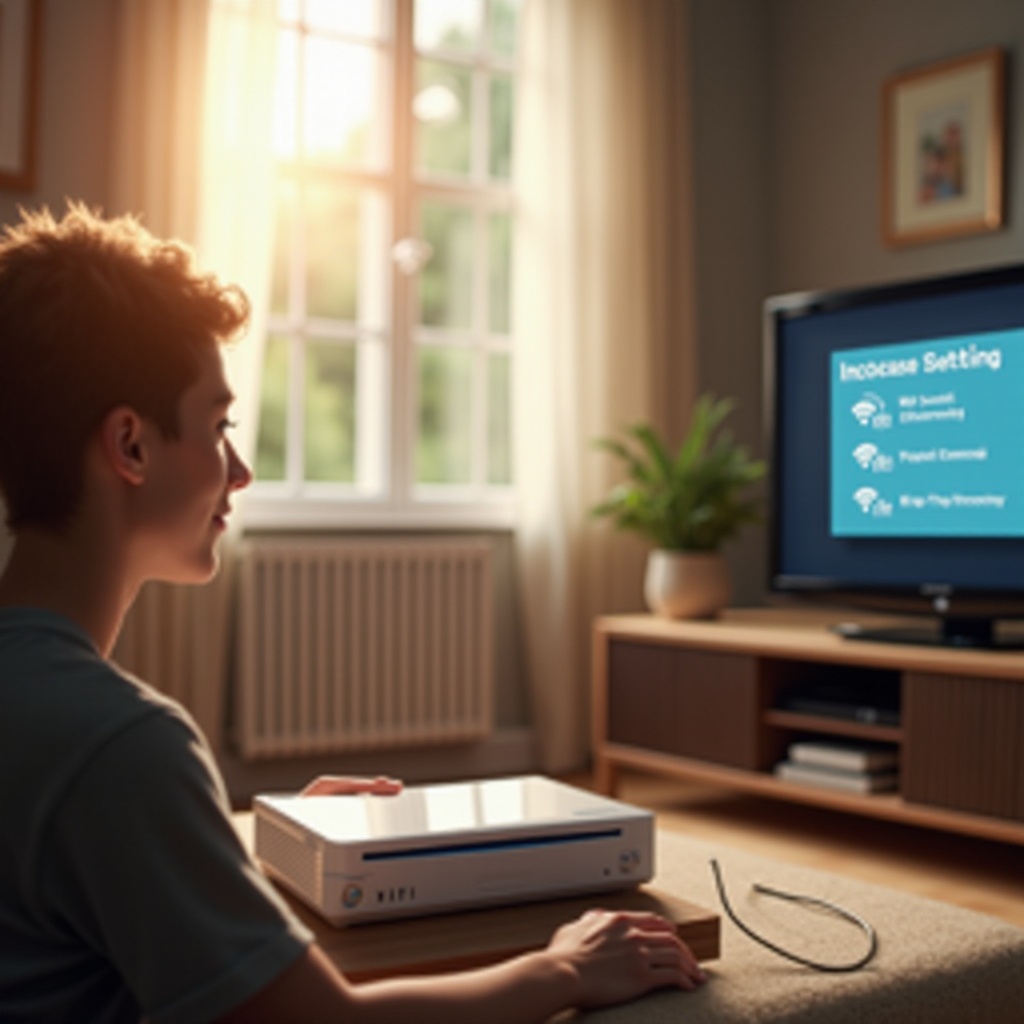
Once your Wii is online, a new world of possibilities opens up. Beyond gaming, you can download new titles, access streaming services, and connect with other players around the globe. It is essential to be aware of the Wii’s limitations due to its older hardware, which may not support some modern applications. Nevertheless, the Wii remains a portal to an array of engaging content and should not be underestimated.
Preparing Your Wii Console for Internet Access
Before starting the connection process, ensure you have the necessary items prepared.
- Checking Software and Hardware Requirements: Confirm that your Wii has the latest firmware version as outdated software can hinder a successful connection.
- Gathering Necessary Materials: Have your wireless router and Wi-Fi password ready, as they are crucial for the setup process.
Step-by-Step Process to Connect to the Internet
With the necessary preparations made, it is time to connect your Wii to the internet.
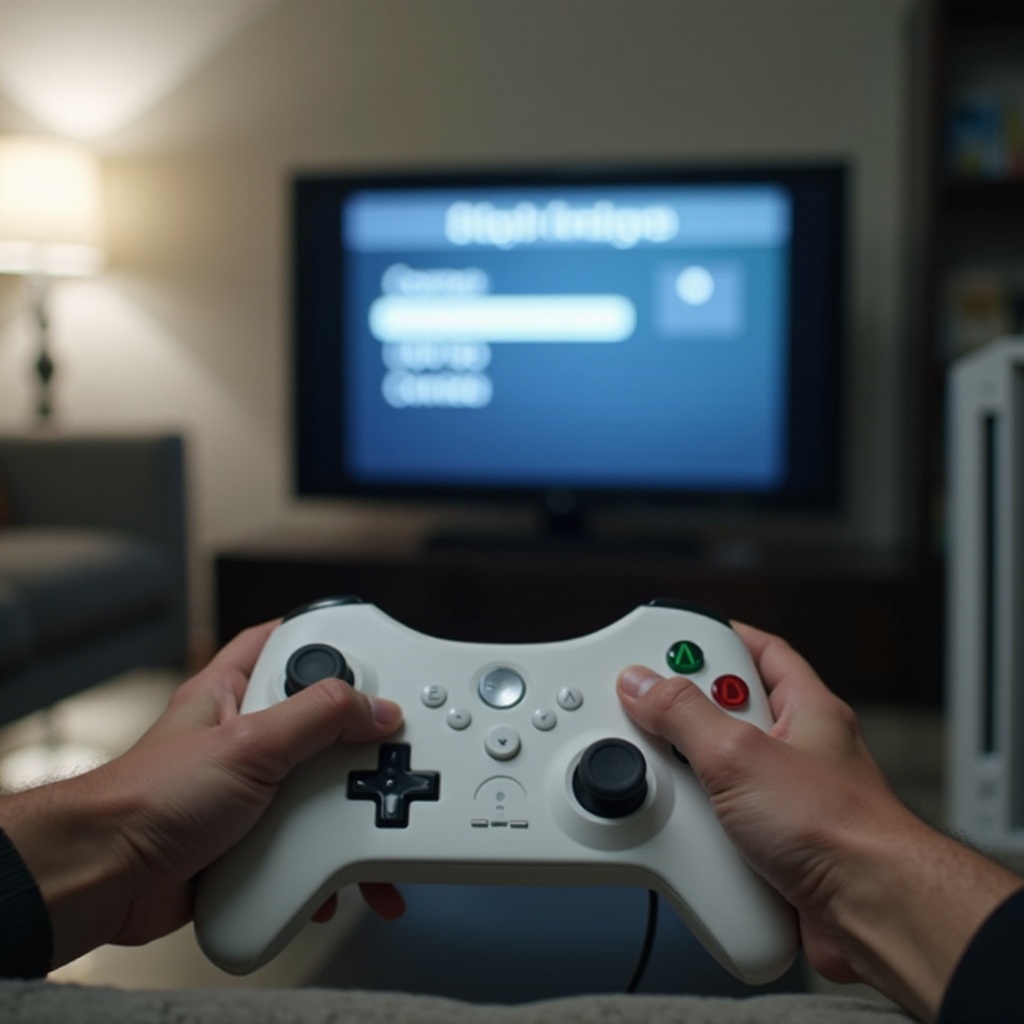
- Accessing Wii Settings: Turn on your Wii and navigate to the Home screen. Select the ‘Wii’ button at the bottom left, and proceed to ‘Wii Settings.
- Setting Up a Wireless Connection:
- Choose ‘Internet’ from the settings menu, then select ‘Connection Settings.
- Click on ‘Connection 1: None,’ followed by ‘Wireless Connection.
- Select ‘Search for an Access Point’ to find available networks.
- Pick your network from the list and enter your Wi-Fi password when prompted.
- Troubleshooting Initial Setup Issues: If an error code appears, take note of it and consult Nintendo’s troubleshooting resources. Common solutions include ensuring your router’s SSID is visible and checking the entered password for accuracy.
Optimizing Your Internet Connection
To get the most out of your Wii’s internet capabilities, consider these optimization tips:
- Boosting Wi-Fi Signal Strength: To avoid weak connections, position the router closer to your Wii or remove any barriers. A Wi-Fi extender can significantly enhance signal strength.
- Using Wired Connections as an Alternative: For increased stability, use a Wii LAN Adapter for a wired connection, which minimizes lag or connection drops.
- Configuring Internet Settings for Improved Performance: Access your network settings on the Wii, and adjust channels or firewall configurations to reduce interference and boost connection speed.
Exploring Internet Features on the Wii
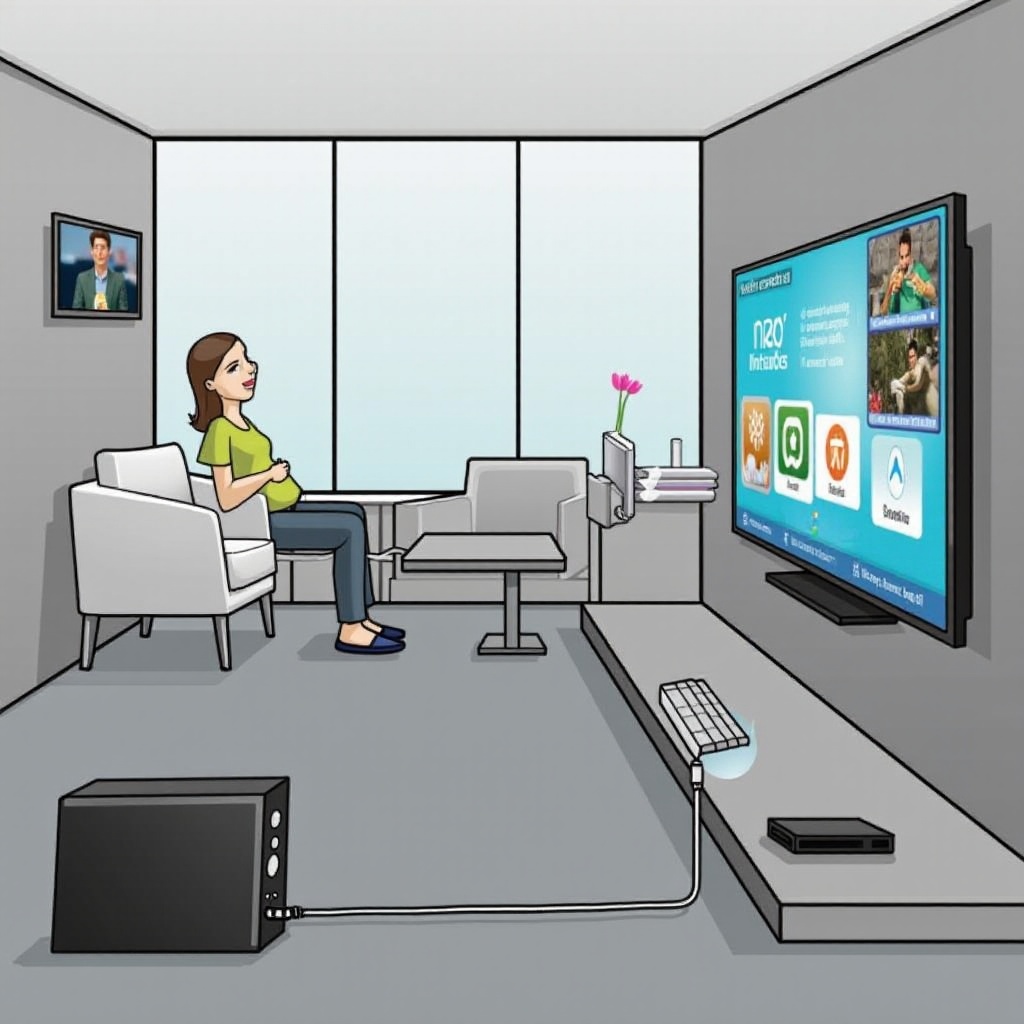
Connected to the internet, your Wii offers a host of entertaining features:
- Accessing the Wii Shop Channel: Browse and download games, applications, and diverse digital content using your points to expand your game library.
- Enjoying Online Multiplayer Games: Discover which games offer online play and challenge friends or new acquaintances worldwide.
- Streaming Content on Your Wii: Utilize apps like Netflix and YouTube to stream shows and videos, provided these apps are compatible with your Wii version.
Ensuring Online Safety and Setting Parental Controls
Safeguarding your online experience is paramount, particularly for younger players:
- Setting Up Content Filters: Employ the Wii’s parental controls to restrict access to certain content types and regulate playtime.
- Monitoring Internet Usage: Regularly verify which services are being accessed on your Wii and modify settings to prevent unauthorized activities.
Conclusion
By connecting your Wii to the internet, you open up a realm of possibilities, adding layers of excitement to your gaming activities. Utilize this guide to seamlessly complete the setup, ensuring you maximize your Wii’s potential while maintaining a secure environment.
Frequently Asked Questions
Why can’t my Wii detect my Wi-Fi network?
Ensure your network’s SSID is not hidden and that your Wii is within range. You may also manually enter the network’s SSID and password.
How do I update the Wii to ensure proper internet access?
Access the Wii System Settings, select the ‘Wii System Update’ option, and follow the instructions to download and install available updates.
Can I use a wired internet connection on my Wii?
Yes, purchase a Wii LAN Adapter to connect your console directly to the router for a more stable internet connection.