Introduction
Resetting your Panasonic TV is a useful troubleshooting step. Whether you’re dealing with software glitches or preparing your TV for a new user, knowing how to execute a reset efficiently is important. This comprehensive guide will take you through both soft and factory reset processes and help you resolve any post-reset issues, ensuring your TV operates smoothly.

Understanding the Need for a TV Reset
Television technology has seen rapid advancements, occasionally leading to technical issues. You may need to reset your TV if you experience frequent system freezes, app errors, or persistent bug messages. Identifying these problems ensures that a reset is the right approach for efficient resolution. With this understanding, you can confidently move to reset preparation.
Preparing for the Reset
Preparation greatly enhances the reset process. To prepare:
- Note any custom settings for later restoration.
- Ensure you have your Wi-Fi password handy.
- Consult Panasonic support if your TV is still under warranty or if you’re uncertain about resetting.
These steps complete, you’re ready to follow the reset options with assurance.
Performing a Soft Reset on Your Panasonic TV
If your TV is experiencing minor issues, a soft reset can often be an effective solution.
What is a Soft Reset?
A soft reset involves powering down your TV to clear temporary glitches. It is a quick fix that retains all your settings and app data.
Steps to Soft Reset
- Turn off the TV using the remote.
- Unplug the power cord from the outlet.
- Wait for at least 30 seconds.
- Plug the TV back in.
- Turn on the TV with the remote.
This method often resolves small operational hitches effectively.
Performing a Factory Reset on Your Panasonic TV
If a soft reset proves insufficient, a factory reset might be necessary.
What is a Factory Reset?
A factory reset reverts your TV to its original system settings, deleting all personal data and customizations. This step is more suitable for severe issues or preparing the TV for a new user.
Precautions Before a Factory Reset
Take care of the following before proceeding:
- Backup essential information and settings.
- Prepare to reinstall apps and reconfigure settings.
- Record your TV model and serial numbers for future reference.
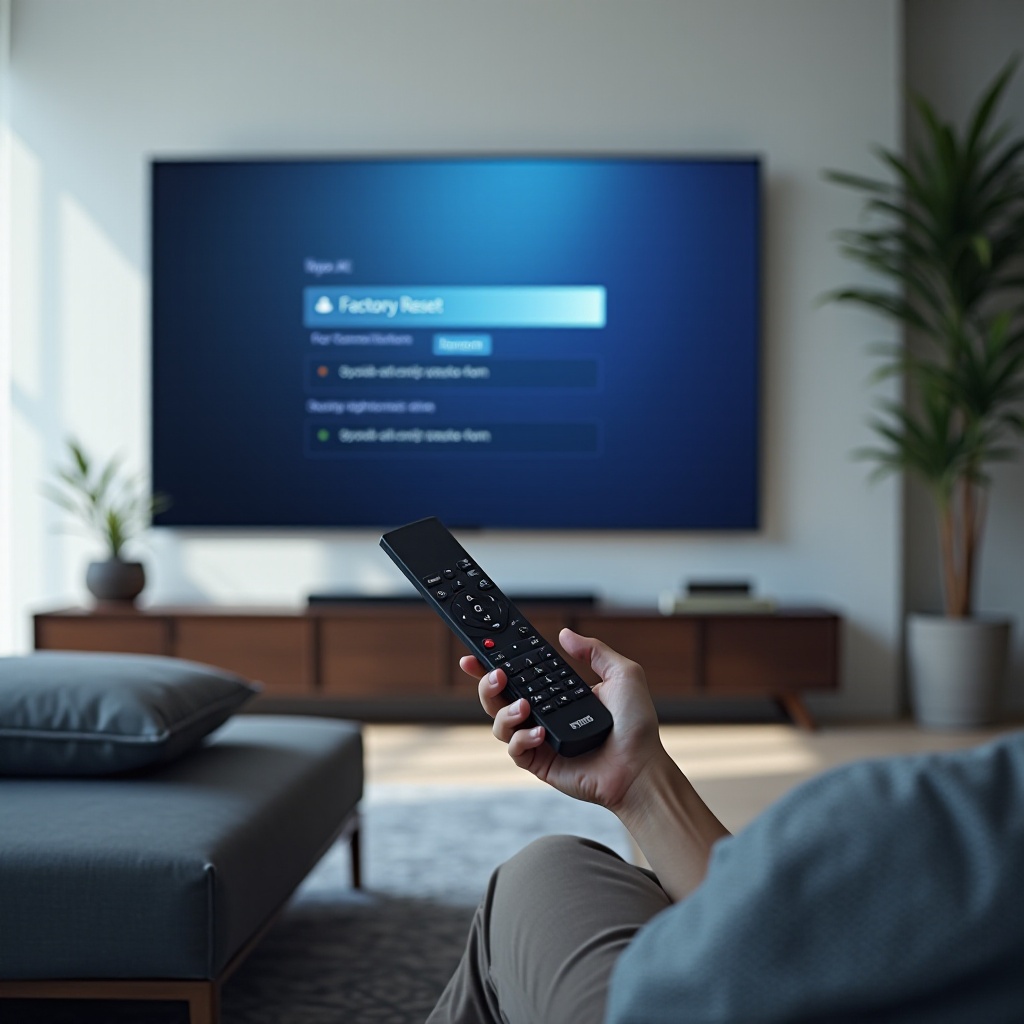
Steps to Factory Reset
- Press the Menu button on the remote.
- Navigate to ‘Setup’.
- Select ‘Self Test’ or ‘System’, depending on your model.
- Choose the Factory Reset option and confirm.
- Follow the on-screen prompts to complete the reset.
After the reset, the TV will restart with factory settings.
Troubleshooting Common Issues After Reset
After resetting, you might face new issues. Here’s how to handle them:
Connectivity Problems
- Re-enter Wi-Fi network details via ‘Network Settings’.
- Double-check that all cables are securely connected.
Picture and Sound Issues
- Access the ‘Picture’ and ‘Sound’ menus to adjust settings.
- Ensure the TV’s software is up to date to mitigate bugs.
Restoring Saved Settings
- Use your notes or previous settings to customize the TV back to your preferences. This ensures a personalized viewing experience post-reset.
Conclusion
Resetting your Panasonic TV can eliminate technical problems, enhancing performance. Whether a soft or factory reset suits your needs, this guide aims to make the process seamless. Proper preparation and understanding ensure your TV returns to peak condition.
Frequently Asked Questions
What should I do if my Panasonic TV doesn’t turn on after a reset?
Check the power connection and the remote’s batteries. If the issue persists, consult Panasonic support.
Will I lose all my apps after a factory reset?
Yes, you will need to reinstall apps after a factory reset as it deletes all installed applications.
How often should I perform a reset on my Panasonic TV?
Resets should only be done when necessary for resolving issues to maintain optimal TV performance.