Introduction
ONN wireless earbuds are known for their impressive sound quality and affordability, making them a popular choice among users. However, some iPhone users encounter challenges when trying to pair these earbuds with their devices. Efficient troubleshooting is vital for maintaining a smooth listening experience. In this comprehensive guide, we will explore various solutions to help you connect your ONN earbuds to your iPhone without any hassle.
Understanding Bluetooth Pairing
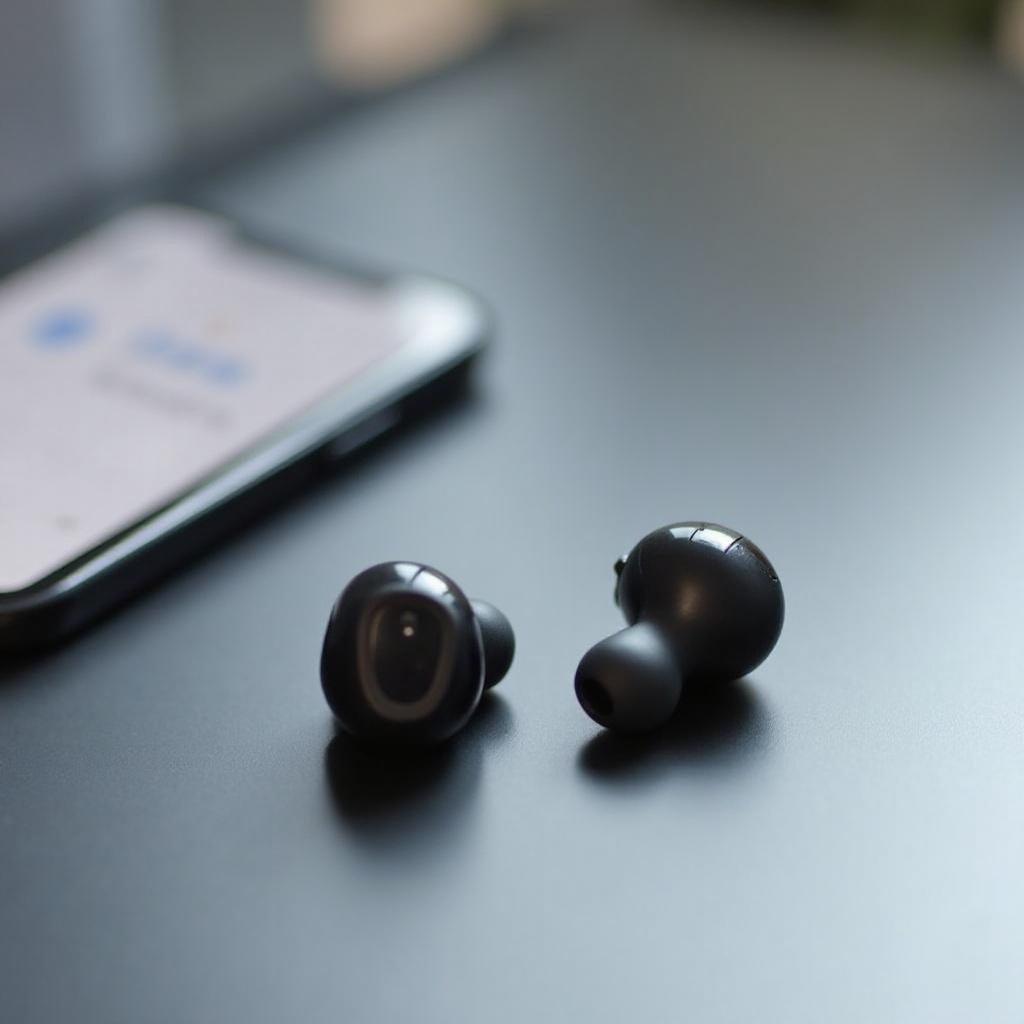
Bluetooth technology is crucial for wireless connectivity between devices like earbuds and smartphones. Establishing a secure connection between your ONN earbuds and your iPhone involves understanding the basics of Bluetooth pairing. This knowledge is key to troubleshooting any disruptions you may face while connecting your devices.
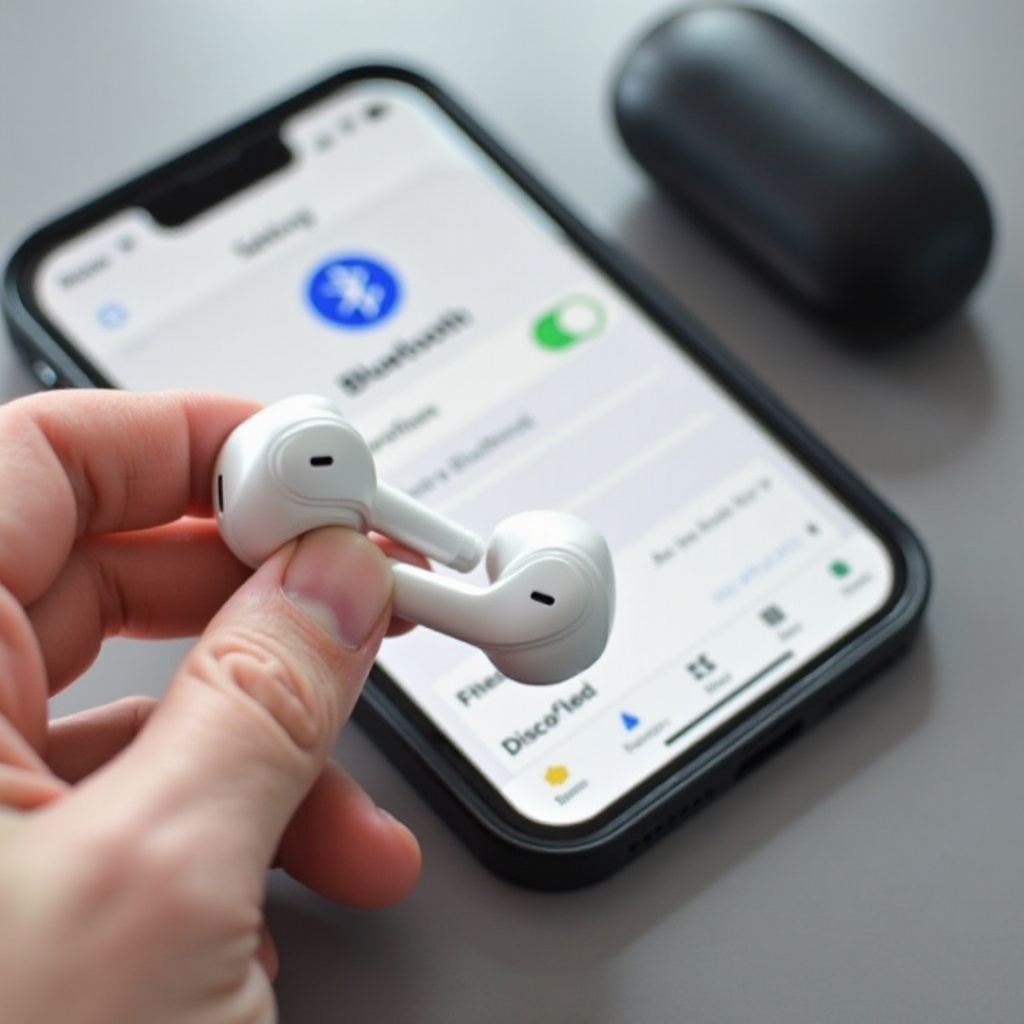
To pair your ONN earbuds with an iPhone, follow these steps:
1. Activate Bluetooth on your iPhone.
2. Put your ONN earbuds in pairing mode.
3. Select your earbuds from the list of available devices on your iPhone.
Understanding these basics prepares you for initial troubleshooting steps if pairing does not occur smoothly.
Initial Troubleshooting Steps
If the pairing process is unsuccessful, consider these simple solutions:
-
Charge Your Earbuds: Ensure that your ONN earbuds have enough power, as low battery levels can interfere with pairing.
-
Enable Bluetooth on iPhone: Double-check that Bluetooth is turned on. Go to Settings > Bluetooth on your iPhone and toggle it on if necessary.
-
Ensure Pairing Mode is Activated: Verify that your ONN earbuds are in pairing mode, usually indicated by a flashing light after pressing and holding the power button.
If these initial steps don’t resolve the issue, it’s time to explore more detailed troubleshooting methods.
Detailed Troubleshooting Guide
For more stubborn pairing problems, follow these more detailed solutions to improve connection stability:
-
Forget and Reconnect the Device on iPhone: Go to Settings > Bluetooth on your iPhone. Find your ONN earbuds in the device list, tap the information icon, and select ‘Forget This Device.’ Restart both your iPhone and earbuds, then try pairing again.
-
Reset ONN Earbuds: A reset can often clear up glitches. The specific procedure varies by model, but typically involves pressing a reset button until the earbuds restart.
-
Update iPhone iOS and Earbud Firmware: Software updates correct bugs and enhance performance. Check for updates in your iPhone’s settings and consult the ONN website for earbud firmware updates.
These measures often resolve the pairing issues; however, you might still encounter common obstacles that require addressing.
Addressing Common Obstacles
Despite your best efforts, certain factors might continue to obstruct the pairing process:
-
Managing Bluetooth Interference: Make sure there are no nearby devices causing interference. Electronics like routers or microwaves can disrupt Bluetooth signals. Try moving to a different environment to test signal reliability.
-
Resetting Network Settings on iPhone: Occasionally, your iPhone’s network settings might hinder connectivity. Go to Settings > General > Reset > Reset Network Settings. Be aware this action removes all saved Wi-Fi networks and passwords, so be prepared to reconnect afterwards.
-
Testing with Another Device: If possible, connect your ONN earbuds to a different iOS device to determine whether the problem lies with the earbuds or the original iPhone.
If these attempts don’t solve the problem, advanced solutions may be necessary.
Advanced Solutions for Persistent Issues
When all else fails, consider these advanced fixes:
-
Factory Reset of Earbuds: Often, a factory reset can address deep-rooted issues. Refer to your ONN earbuds manual for detailed instructions on performing a factory reset.
-
Manual Pairing Mode: Try using a manual pairing mode if available, especially when automatic pairing fails. Consult the user manual for steps.
-
Checking Hardware Issues: Finally, inspect your earbuds for any physical damage or hardware issues. If problems persist, it may be time to consult a professional.
If your efforts remain fruitless, professional assistance could provide the relief needed.
When to Seek Professional Assistance
Sometimes, issues may stem from hardware or faults beyond simple troubleshooting. If you’ve exhausted all methods without success, it’s wise to consult an authorized support provider. Check your warranty status, as it may cover repair or replacement expenses.
Conclusion
Seamless connectivity is essential for enjoying your ONN wireless earbuds with an iPhone. By following these troubleshooting tips, you should overcome most pairing problems. Keeping your devices updated is also crucial for reducing connectivity disruptions. If the issue persists, professional assistance may be necessary.
Frequently Asked Questions
Why won’t my ONN earbuds charge fully?
This problem can occur if there’s dust or debris in the charging ports. Clean them carefully and ensure that the charging cable and power source are functioning properly.
Can I use ONN earbuds with other devices besides an iPhone?
Yes, ONN wireless earbuds are compatible with any Bluetooth-enabled device such as Android phones, tablets, and computers.
How do I know if my ONN earbuds are in pairing mode?
Typically, the LED on the earbuds will flash steadily or blink rapidly when they are in pairing mode. Check the user manual for specific instructions for your model.