Introduction
Experiencing issues with a TV that won’t power on can be frustrating and disrupt your viewing routine. If your Samsung curved TV isn’t turning on, don’t worry. This guide will walk you through essential steps to identify and resolve the issue, helping you regain a smooth viewing experience. Whether a minor glitch or a more significant issue is behind the trouble, this article aims to aid you effectively.
Initial Checks for Your Samsung Curved TV
Before jumping into complex solutions, begin with some straightforward checks that might resolve the issue quickly.
Verify the Power Source
- Check the Outlet: Plug another device into the same outlet to ensure it provides power.
- Inspect the Power Cord: Disconnect the TV’s power cord and look for visible damage or fraying. Use a different power cord if you have one compatible with your model.
Check the Remote Control
- Test the Batteries: Replace the batteries in the remote with fresh ones to eliminate power issues.
- Use the Power Button on the TV: Try using the power button on the TV itself in case the issue lies with the remote control.
After performing these checks, if the TV still doesn’t turn on, proceed to examine the TV’s standby light for more clues.
Understanding the Standby Light
Your Samsung curved TV’s standby light can provide valuable indications about its status.
Decoding Different Light Signals
- Solid Light: A steady standby light usually suggests that the TV is receiving power but is not turned on. Double-check the remote and its batteries.
- Flashing Light: This can indicate several issues, ranging from minor errors requiring resets to critical failures that need professional diagnosis.
No Light vs. Blinking Light
- No Light: Absence of a standby light generally points toward a power supply issue. Double-check connections and the outlet.
- Blinking Light: This typically means the TV is trying to power on but encounters an obstruction. Perform reset operations or inspect external connections.
If these assessments don’t solve the problem, inspecting connections and devices is the next logical step.
Inspecting Connections and Devices
Improper connections and external device interference can sometimes cause startup issues.
Examine HDMI and Cable Connections
- Disconnect and Reconnect: Remove all HDMI cables linked to the TV and try turning it on without them.
- Inspect the Cable Quality: Review cables for any damage, as faulty cables can interrupt power supply and signals.
Disconnect External Devices
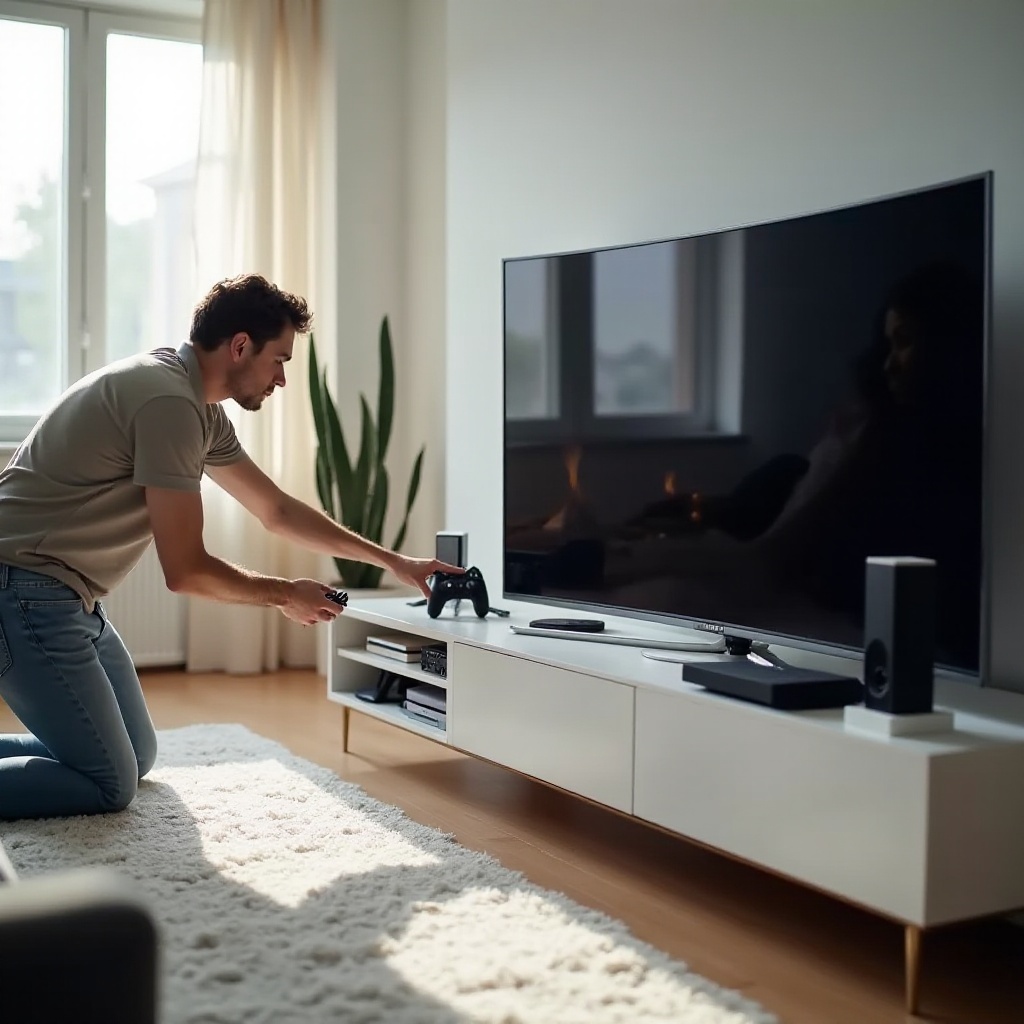
- Isolate the TV: Remove all external devices such as soundbars, gaming consoles, and streaming gadgets to see if they interfere with startup.
- Test Devices Independently: Check each external device separately to ensure they are not causing the issue.
If disconnecting devices doesn’t help, consider resetting your Samsung curved TV.
Resetting Your Samsung Curved TV
Sometimes a simple reset can resolve unresolved glitches or temporary issues.
Soft Reset Instructions
- Unplug the TV: Remove the power cable from the wall socket.
- Wait for a Minute: Allow the TV to sit without power for about 60 seconds.
- Reconnect and Power On: Plug the TV back in and use the power button on the TV to turn it on.
Hard Reset Instructions
- Access the Menu: If functionality allows, use the remote to navigate to the settings menu.
- Factory Reset: Find the system or support settings, select the Factory Reset option, and follow the directions.
Once resets are performed, checking software updates might be the following step to ensure everything is up-to-date.
Software and Firmware Solutions
Outdated software may result in operational hiccups, including power issues.
Checking for Software Updates
- Automatic Updates: Ensure your TV’s automatic update setting is enabled under system settings.
- Manual Update: If updates fail automatically, download the latest firmware from Samsung’s official site.
Manual Update Guide
- Download the Update: Access Samsung’s support page to get the latest firmware for your TV model.
- Transfer and Install: Use a USB drive to transfer the update file and install it as instructed by the TV.
If difficulties persist after trying all other fixes, it’s time to consider professional help.
When to Seek Professional Help
Some problems require an expert’s touch to prevent further damage.
Unresponsive TV Despite Troubleshooting
- Persistent Problems: When the TV doesn’t respond to these troubleshooting measures, consulting a technician may be necessary.
Signs of Hardware Failures
- Internal Component Issues: Unusual noises, persistent blinking or lack of power might indicate hardware problems best handled by professionals.
Ultimately, a professional can offer a precise diagnosis and a comprehensive solution to maintain your TV’s long-term wellbeing.
Conclusion
Though vexing, a non-responsive Samsung curved TV can often be resolved by following these structured troubleshooting steps. From initial checks to understanding light signals, and from comprehensive resets to professional help, you’re now equipped with a roadmap to address the issue effectively.
Frequently Asked Questions
Why is my Samsung Curved TV not turning on after a power outage?
After a power outage, the TV might need a soft reset. Unplug it, wait, then plug it back in. If issues persist, check fuse and power settings.
How do I perform a factory reset on my Samsung Curved TV?
Navigate to the settings menu via the remote, choose system or support settings, and select the Factory Reset option. Confirm and follow the prompts.
What should I do if my TV turns on but has no display?
Ensure all cable connections are secure. If the problem remains, perform a soft reset or check for firmware updates that might address the issue.